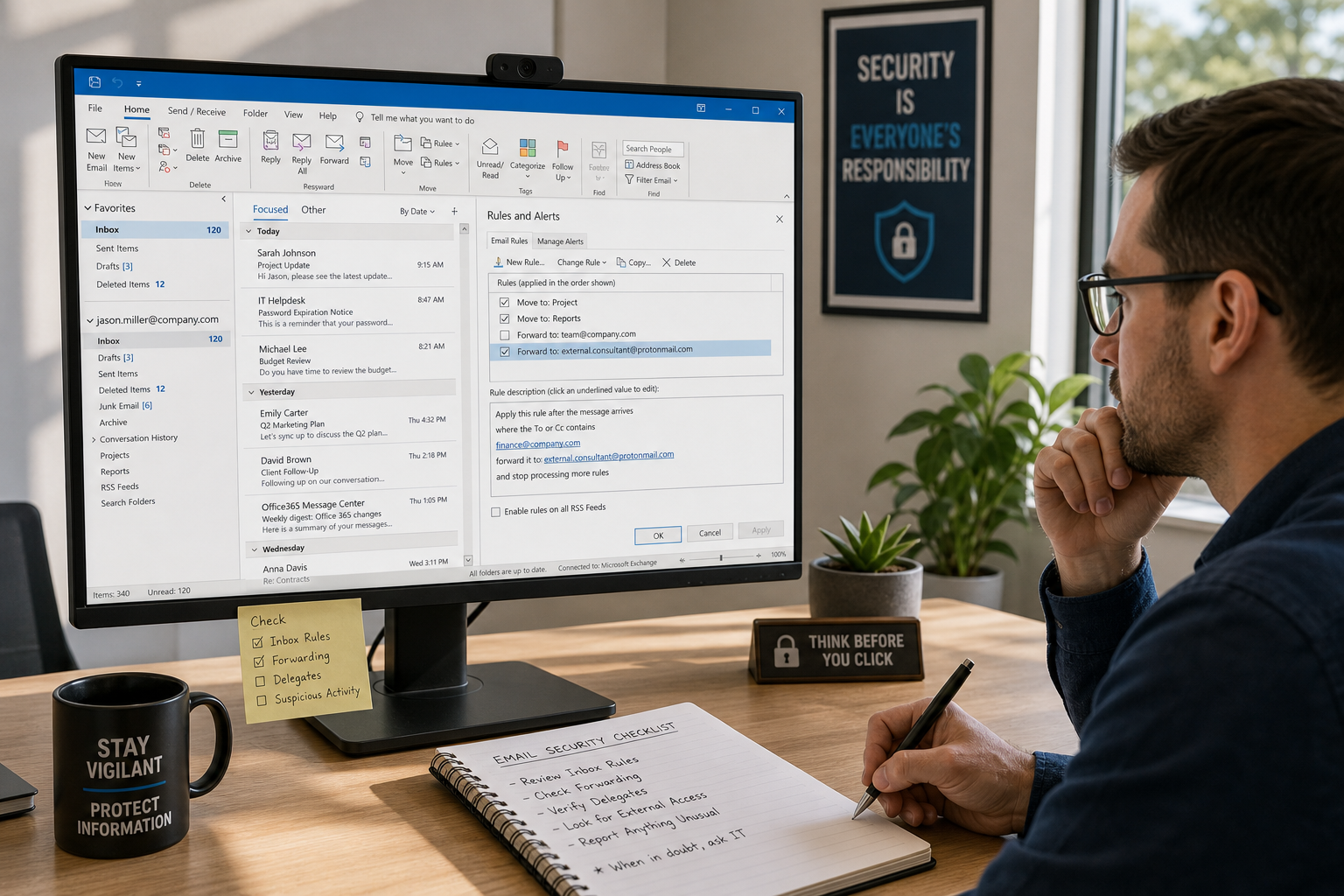
A controller in Colorado Springs sends invoices every day, Outlook looks normal, and customers still get replies. But one quiet mailbox rule can copy selected messages to an outside address, move them out of sight, or mark them read so nobody notices a problem for weeks. That is why I treat Microsoft 365 forwarding rule security as its own review item, not a footnote inside a broad security checklist.
A business can check Microsoft 365 for unauthorized email forwarding or inbox rules by reviewing mailbox forwarding settings, inbox rules, delegated mailbox permissions, and any available audit records in Exchange Online and Microsoft 365. The key is context. Some forwarding and shared access are legitimate, but they should match a known business reason, an approved owner, and a documented setup.
I am Jeff at QuByte Systems in Colorado Springs, and this is one of those configuration-level checks that tells you more than a generic “security review” ever will. If the question is how can a business check Microsoft 365 for unauthorized email forwarding or inbox rules, the answer starts with looking at the mailbox behavior itself, not just the sign-in alerts around it.
How can a business check Microsoft 365 for unauthorized email forwarding or inbox rules?
Start by checking four places. Review mailbox-level forwarding, user-created inbox rules, mailbox delegation and permissions, and audit information that shows when a rule or forwarding setting was added or changed. Then compare each finding to a real business need, because not every rule is malicious.
A narrow review usually includes:
- Mailbox forwarding configured in Exchange Online.
- Inbox rules in Outlook on the web and desktop-created rules that sync to the mailbox.
- Rules that delete, archive, move, redirect, or mark messages as read.
- Delegated access such as Full Access, Send As, and Send on Behalf.
- Audit entries, if available under the tenant’s configuration and licensing.
Microsoft has documented that administrators can control automatic external forwarding in Exchange Online through outbound spam filter policy and related mail flow settings. That matters because a quiet forwarding path may exist at the mailbox level even while normal email keeps working. See Microsoft Learn for the official Microsoft 365 and Exchange guidance.
What can forwarding and inbox rules actually change without breaking normal email?
They can change who sees a message, whether the intended user notices it, and where it gets stored, all while email appears to be working normally. That is what makes Microsoft 365 forwarding rule security worth reviewing separately from broad control reviews.
Picture a hypothetical Colorado Springs business with 45 employees, a front office in Briargate, and project managers who live in Outlook all day. The accounting mailbox keeps receiving vendor messages, but a rule silently forwards any email containing “wire,” “bank,” or a specific customer name to an outside address. Another rule moves those same messages into a buried folder and marks them read.
No outage happens. Mail flow is not obviously down. The user still sends and receives ordinary messages. The owner may only notice after a vendor says, “We already sent the change request last Tuesday.”
Rules and forwarding can do things like:
- Forward all mail, or only selected messages, to an external address.
- Redirect messages so a copy does not remain where the user expects.
- Move messages to RSS, Archive, Conversation History, or a custom folder.
- Delete messages or mark them as read.
- Apply only to high-value senders, invoice terms, ACH language, or executive names.
I tell owners this all the time. If email “still works,” that does not prove the mailbox is behaving the way you think.
Common mistake: Reviewing only the user’s visible Outlook rules
A lot of teams open Outlook, check a few client-side rules, and stop there. That misses mailbox forwarding set in Exchange Online, hidden or forgotten rules created in Outlook on the web, and permission changes that let another account manage mail behind the scenes.
Which Microsoft 365 configurations are worth inspecting first?
Inspect the settings that can reroute or conceal messages with the least friction. In practice, that means external forwarding controls, mailbox forwarding fields, inbox rules with suspicious actions or conditions, and transport behavior that allows mail to leave the tenant.
Is external forwarding allowed at all?
Check whether your organization permits automatic forwarding to external recipients. If it is allowed globally, then any one compromised mailbox may be able to send copies out automatically.
Microsoft has tightened default handling over time because this is a known abuse path. According to Microsoft, automatic forwarding to external recipients is commonly restricted or disabled in many tenants through outbound spam policies. If your organization has a valid reason to allow it for 2 or 3 specific mailboxes, fine. But “we never decided” is not a policy.
Which mailbox forwarding settings should you review?
Look for forwarding addresses set directly on a mailbox, including cases where mail is both delivered locally and forwarded elsewhere. That combination is easy to miss because the user’s inbox still receives messages.
Important fields to check include:
- Forwarding SMTP address.
- Forwarding address object.
- DeliverToMailboxAndForward status.
- Any admin-set transport or routing exceptions tied to one mailbox.
What inbox rules tend to deserve a closer look?
Focus on rules that hide, suppress, or selectively redirect messages. A rule is more suspicious when it targets finance terms, executive senders, legal notices, or authentication emails.
Examples that deserve review:
- Move to folder plus mark as read.
- Delete or permanently delete.
- Forward as attachment or redirect to an outside address.
- Apply only when subject or body contains words like invoice, payment, bank, routing, ACH, statement, DocuSign, or password.
- Apply only from a named customer, vendor, executive, or payroll provider.
| Finding | Often normal | Needs investigation |
|---|---|---|
| Rule moves newsletters to a folder | Yes | No, unless paired with deletion or external forwarding |
| Forwarding to employee personal Gmail | Rarely | Yes |
| Shared mailbox delegated to front desk | Often | Only if undocumented or broader than needed |
| Rule hides messages from bank or payroll vendor | No | Yes |
Colorado Springs businesses often juggle storm outages, hybrid work, and after-hours approvals. That makes “temporary” email forwarding more likely during a crunch, especially when someone is covering phones, billing, or dispatch from home. Temporary changes are exactly the ones that need a documented owner and an expiration date.
How does delegated mailbox access change the review?
Delegated access changes who can create or alter mailbox behavior, so checking rules alone is not enough. A mailbox may have no suspicious forwarding configured directly by the user, but another account with Full Access or Send As rights may still be part of the story.
Review at least these permission types:
- Full Access.
- Send As.
- Send on Behalf.
- Membership in groups that grant access indirectly.
This is where I see context matter most. A front desk team might legitimately access a shared info@ mailbox. A controller might have Send As on AP@. That is not automatically bad. The question is whether the access is current, approved, and scoped to how the business actually runs today.
If your leadership team has not recently reviewed privileged and delegated access, this is closely related to the broader admin-side check I covered in this Microsoft 365 admin access review for Colorado Springs leaders.
Myth: If a forwarding rule were unauthorized, users would notice right away because email would stop arriving.
Reality: Many abusive rules are built to stay quiet. They forward only selected messages, keep local delivery on, or move items to folders the user never opens. The mailbox can appear normal for days or months.
What audit information should a business review, if available?
Review audit data that shows who created, changed, or used mailbox rules and permissions, as long as your Microsoft 365 setup and licensing make that information available. Audit history helps establish sequence and ownership. It does not replace configuration review, but it can explain it.
What events help answer “who changed this”?
Look for mailbox rule creation or modification, forwarding changes, permission grants, sign-in context, and admin actions affecting Exchange Online. The exact event names and retention periods depend on your tenant configuration and license.
Relevant evidence may include:
- MailboxLogin and delegate activity where available.
- Inbox rule creation, update, or deletion events.
- Mailbox forwarding changes.
- Admin center or PowerShell changes to Exchange settings.
- Sign-in details around the same time window.
According to the Cybersecurity and Infrastructure Security Agency, unauthorized email forwarding and mailbox rule abuse are common persistence techniques after account compromise. CISA’s guidance is useful here because it pushes investigators to validate both mailbox settings and logs, not just one or the other.
I would add one practical caution. Audit records are only as useful as the logging, retention, and license level you had in place before the event. I do not like giving owners false confidence by promising every tenant will show a perfect timeline.
How should a business interpret findings without assuming every rule is malicious?
Interpret each finding against a known business process, a named owner, and a reasonable time frame. A forwarding rule is not guilty by default. It becomes a problem when nobody can explain why it exists, who approved it, or why it points where it does.
A responsible review asks:
- Does the rule support an active business process?
- Was it approved by the mailbox owner or manager?
- Is the destination internal, shared, or truly external?
- Was it meant to be temporary, and if so, when should it have been removed?
- Do audit records and sign-ins line up with the explanation?
Here is the weak version of a finding: “We found forwarding, so the account was compromised.”
Here is the stronger version: “Mailbox A forwards copies of messages containing payment terms to external address B, local delivery remains enabled, the mailbox owner did not request it, and available audit data shows the change followed an unusual sign-in on May 14 at 2:13 a.m. Mountain Time.”
That difference matters. Security work should reduce uncertainty, not replace it with guesswork.
What I would want on a Colorado Springs mailbox review checklist
- A list of all mailboxes with forwarding enabled.
- A list of rules containing delete, move, mark-as-read, redirect, or external-forward actions.
- A review of Full Access, Send As, and Send on Behalf permissions.
- Any exceptions allowing external forwarding.
- Available audit history for rule changes and forwarding changes.
- A short business-owner signoff on which items are expected and which are not.
For many small and midsize organizations, this sort of targeted review is a better first move than buying another tool. If your processes around approvals are loose, it also helps to define who can authorize mailbox changes before support makes them. I covered that operational side in this article on remote IT support authorization.
At QuByte Systems, this is the kind of work we do at the configuration level for Colorado businesses. Not generic “security posture” language. Actual settings, actual permissions, actual evidence. You can see more about how we approach practical IT and security reviews at QuByte Systems.
"Most mailbox investigations are not about dramatic failure. They are about one setting that quietly changed who sees what." Jeff, QuByte Systems
Need help checking Microsoft 365 for unauthorized forwarding or inbox rules?
If you want a second set of eyes on mailbox forwarding, suspicious inbox rules, delegated access, and the audit evidence your Microsoft 365 setup actually has available, we can review it with you and separate normal business configuration from real concern. Beyond IT support. Engineering what comes next.
Schedule a discovery call